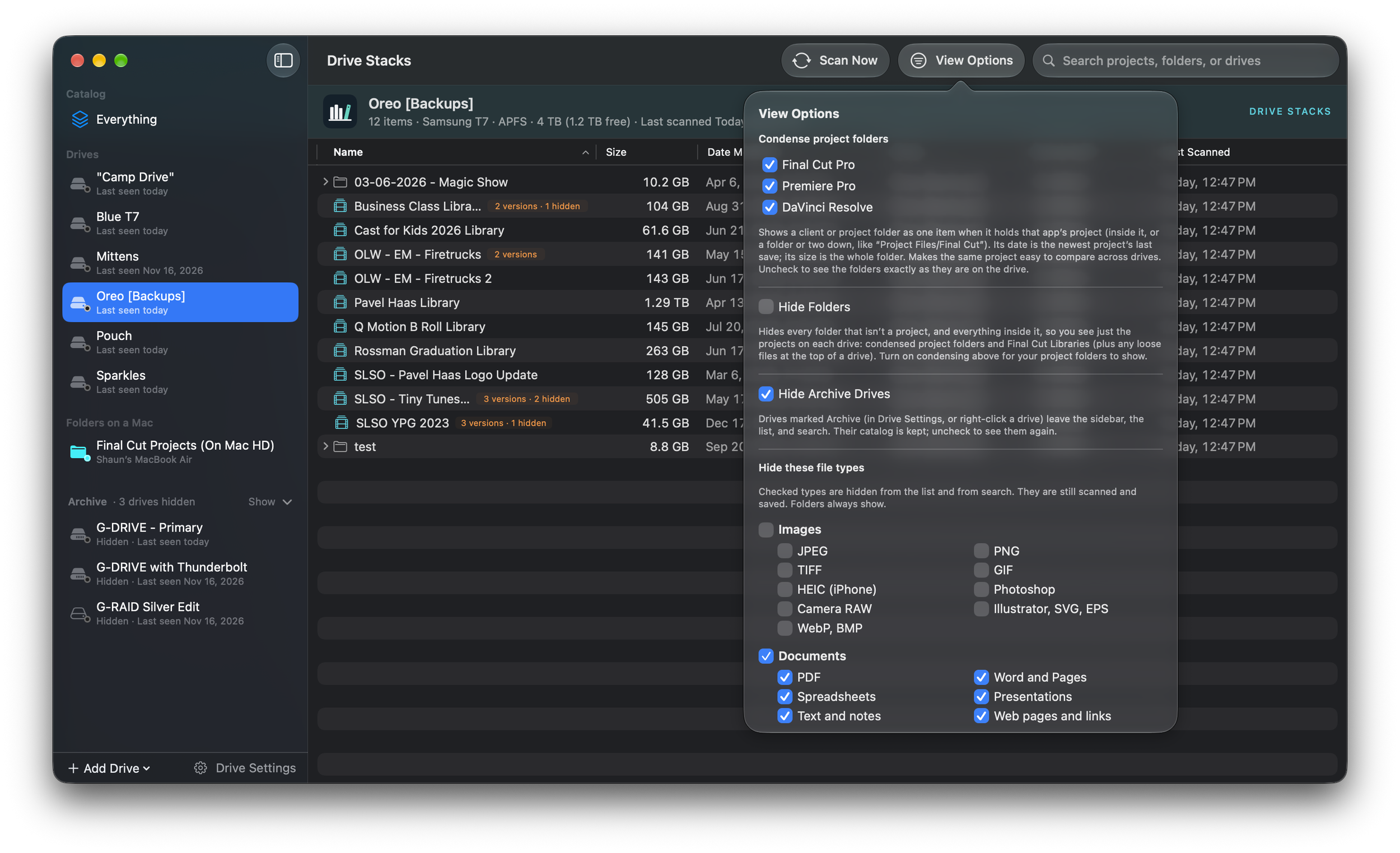
Find the right drive, fast.
Drive Stacks is a Mac app that remembers what's on every external drive— even the ones sitting unplugged in a drawer— so you find your project without plugging in drive after drive.
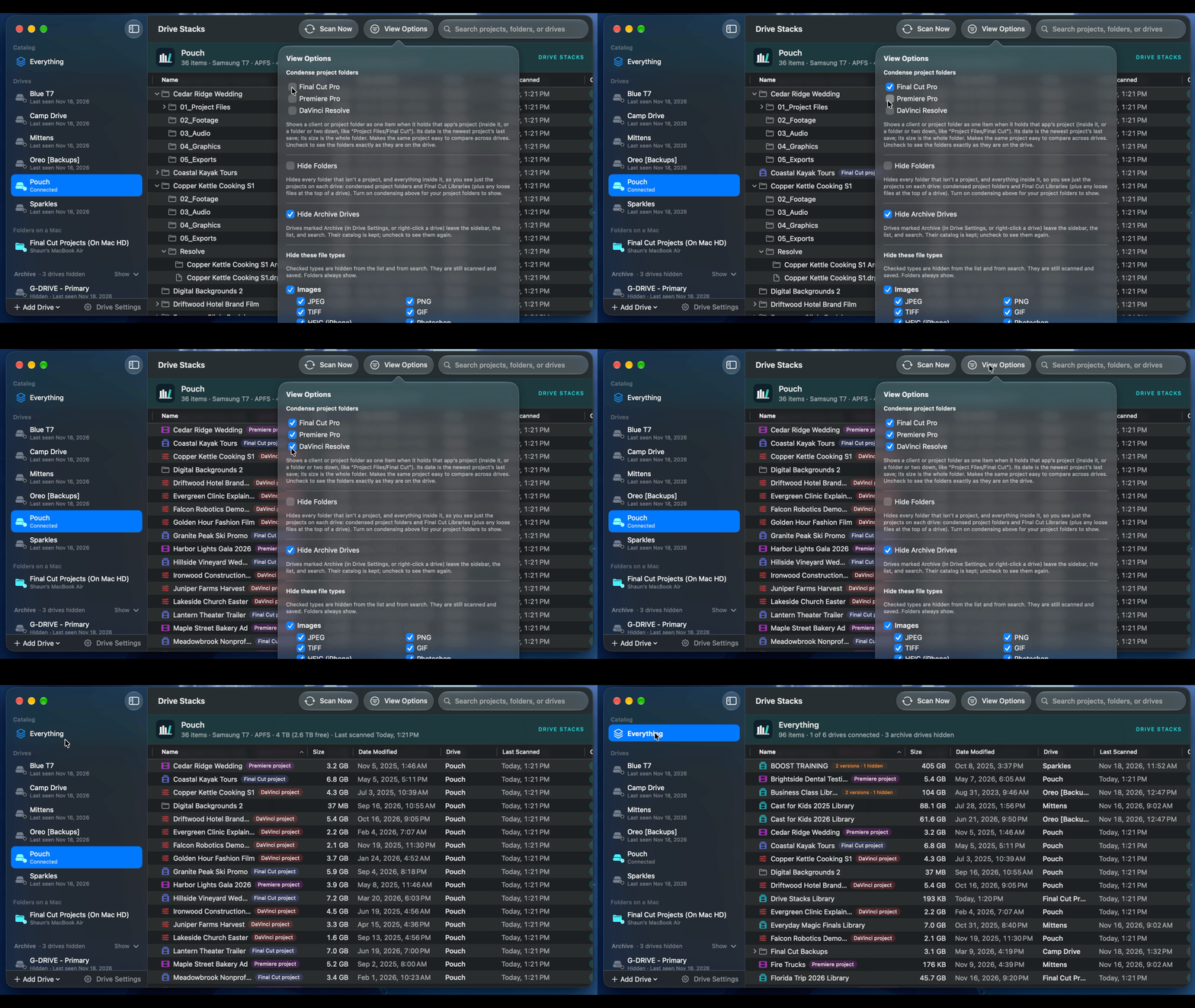
Search every drive at once— plugged in or not.
Built for video projects: Final Cut, Premiere and DaVinci Resolve projects show up as projects, not piles of folders.
Spot every copy: see when the same project lives on three drives, and which copy is newest.
Read-only, always: it never changes a single file on your drives.
Stays out of the way: lives in the menu bar, catalogs drives as you plug them in, and never scans in the middle of a big transfer or edit.
Syncs all your Macs through iCloud Drive. No Drive Stacks account needed.
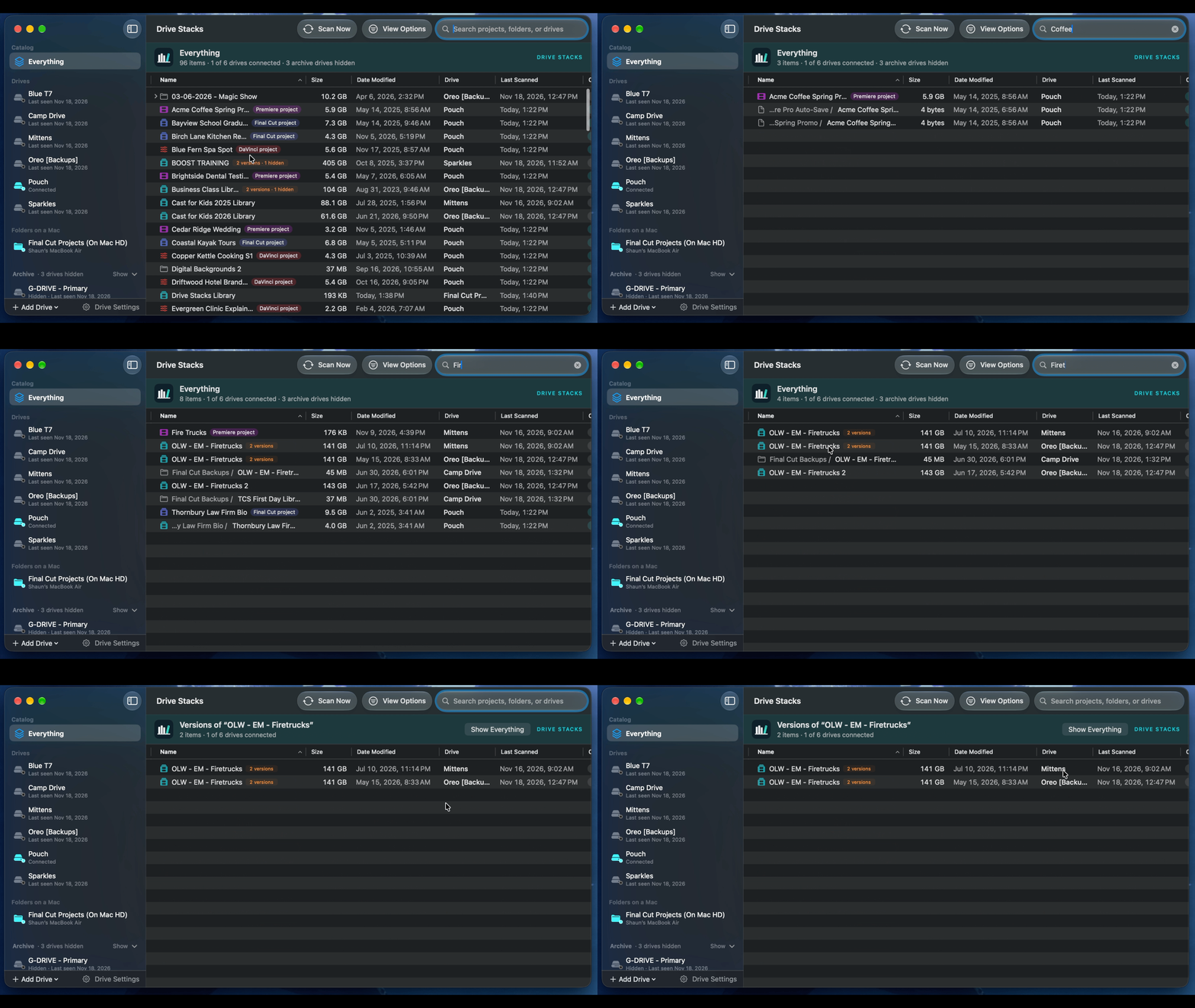
Find it In Seconds
Type a project name and Drive Stacks shows which drive it's on, how big it is, and when it was last edited. It searches drives that are connected and drives that aren't. An unplugged drive shows exactly what was on it the last time it was scanned.
Projects, not Folders
Drive Stacks knows what a Final Cut Library, a Premiere project and a DaVinci Resolve project look like. A client folder holding a project shows as one tidy row, dated by the last time the project was actually saved. Hide ordinary folders with one click, and you see just the projects on each drive.
Every Copy, Side by Side
"Acme Promo", "Acme Promo OLD", "Acme Promo backup" and "Acme Promo 4-25-26" are the same project. Drive Stacks knows that too. A "3 versions" badge shows which projects live on more than one drive. Click it to compare every copy's size and date, and tell the working copy from the backup.
Know Your Drives on Sight
Four memory cards called "Untitled"? Two drives both called "T7"? Drive Stacks recognizes each drive by its unique ID, not its name. Give a drive a description like "Gray SanDisk #4" so you can pick it out of a drawer, and show that instead of its name. Icons show whether each drive is an SSD, a hard drive, a card or a thumb drive.
Archive Drives, Out of the Way
Mark dedicated backup drives as ‘Archive’ and hide them from results with one click. The list stays focused on active work, and you never lose track of the copies they hold.
Your Footage is Safe
Drive Stacks only reads file names, sizes and dates. It never creates, moves, renames or deletes anything on a drive, and it never stores anything on one. Removing a drive from Drive Stacks only removes it from the catalog.
Scans that never get in the way
Drive Stacks catalogs a drive when you plug it in, and keeps it up to date as you work. It waits until a long copy is finished instead of scanning a drive that's still filling up. When nothing is happening, it does nothing: no background checking, no waking sleeping drives, no drain on your laptop battery. Camera cards and Time Machine drives are left alone.
One catalog, every Mac
Keep the catalog in iCloud Drive (or Dropbox, or any synced folder), and your laptop and your edit bay see the same drives. There's no account and no sign-up. If two Macs scan the same drive while offline, Drive Stacks sorts it out and keeps the newer scan.
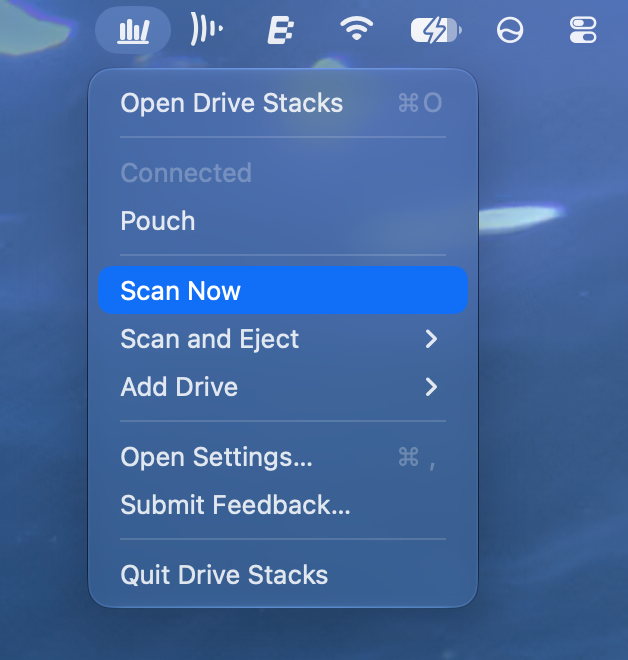
Lives in your menu bar
Drive Stacks starts quietly at login and lives in the menu bar, even over full-screen apps. Check a drive, start a scan, or scan and eject without leaving your edit.